Script Manager
The script manager makes it easy to set up scripts and run dirxcp (DirX Directory Command Line Program) and dirxadm (DirX Directory Administration Program) commands. Moreover, as sort of side effect and not really related to scripts, you can have the script manager decode and view audit log files based on the dirxauddecode command.
Notes:
-
The commands quoted above can only be executed if they are available locally on your machine.
-
(Linux) In order to be able to run
dirxcp/dirxadmscripts, DirX Directory Manager must be installed in the same account as DirX Directory.
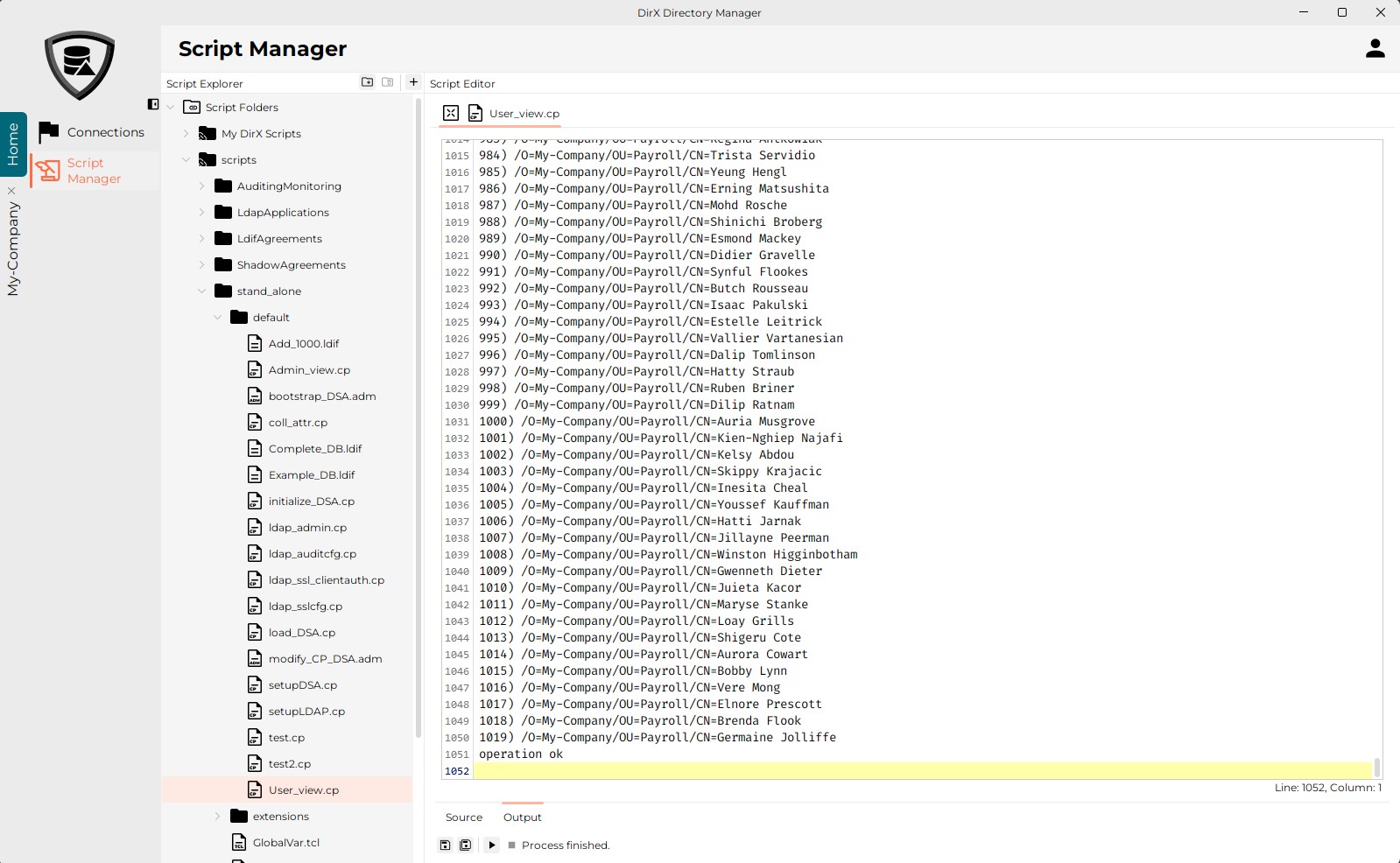
The script manager is available in a special view that is organized into three panes:
Here is an example of the script manager view:
Script Explorer
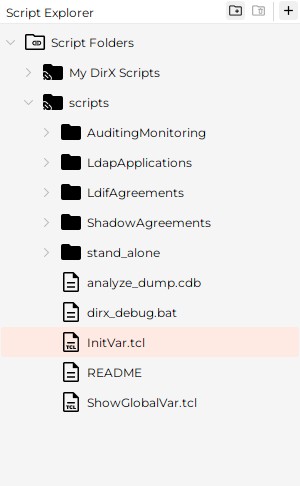
The Script Explorer allows you to locate and manage the folders that contain the scripts you want to view/edit/create. It displays a root entry called "Script Folders". The first level underneath Script Folders consists of links to "real" file system folders that contain your scripts.
Here is an example of the Script Explorer pane:
Link Folders
-
Link folders are like links or shortcuts. See the folder tooltip to see where it points to. A link folder icon contains a small "link" symbol to distinguish it from a "real" folder (see the My DirX Scripts and scripts nodes above).
-
Initially, there is one link folder present (called My DirX Scripts).
-
To add a link folder whose real counterpart exists in the file system, right-click the topmost node Scripts Folders, click "Add Folder" and select a folder in the file selection box that pops up.
-
To create a new link folder with no real counterpart, right-click the topmost node Scripts Folders and click "Add Folder". In the file selection dialog that pops up, click a "Create New Folder" (or similar) button.
-
To remove a link folder, right-click the folder you want to remove and click "Remove". This action deletes only the link that the corresponding folder represents.
-
To rename a link folder, right-click it and click "Rename".
-
You cannot delete the "real" counterpart of a "linked" folder with this application.
-
You can cut/copy/paste and drag/drop script files.
Managing Scripts
-
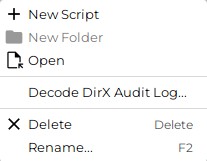
To create a new script, right-click a link folder, any other folder or a script, then click "New Script".
-
To organize your scripts, you can create intermediate folders by right-clicking any folder but "Script folders" and then clicking "New Folder".
-
To view a script, double-click the entry or right-click it, then click "Open". The script is displayed in the Script Editor pane.
-
To delete any file or folder except a link folder, right-click the file or folder and click "Delete". Deleting a folder deletes all of its contents.
-
To rename a folder or a file, right-click it and click "Rename".
Decoding DirX Audit Logs
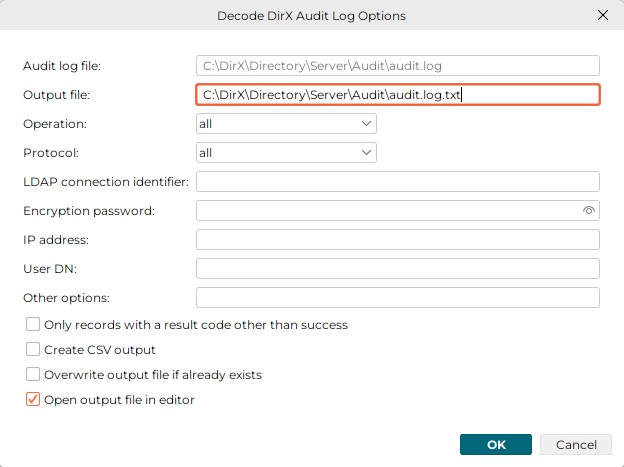
To view a DirX Directory audit log, right-click to open a popup menu, click "Decode DirX Audit Log…" and fill out the form that appears. Primarily, this form allows you to reduce the size of text you are going to face by specifying filters.
| The size of the text displayable in the editor is limited, whereas the size of the original audit log file usually doesn’t matter. |
When creating a CSV output, only a limited number of parameters such as UniqueID, StartTime, Duration and OpType will be reported (equals the -Z command line switch in dirxauddecode).
"Other options" allows you to specify options in a command line like style. This field is primarily intended for use by vendor staff.
Script Editor
You can use the script editor to display, edit, and run scripts and display audit log files. Here is an example dialog:
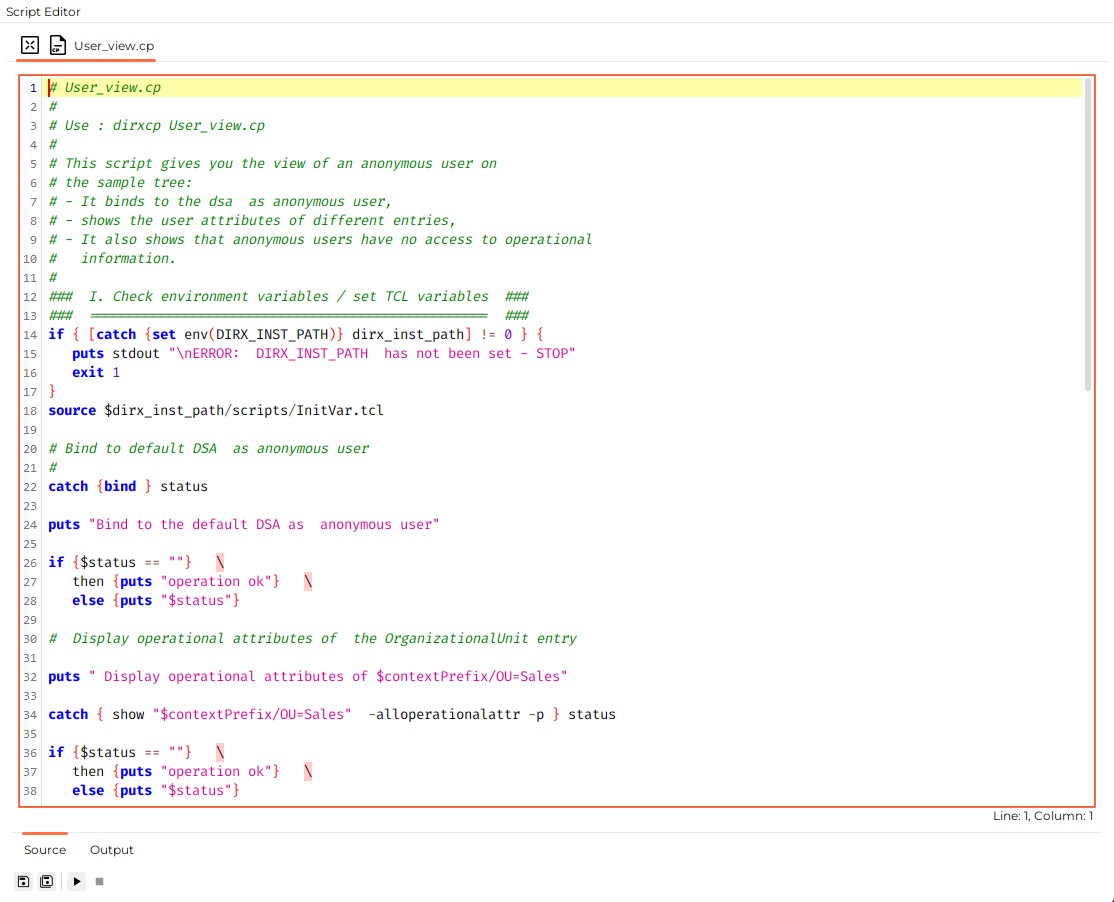
The functionality of the text (code) editor is described in the Code Editor section.
Additionally, the editor in this view supports the following features in the toolbar below it:
Script Editor Toolbar
-
Saving the script that is currently visible
-
Saving all the scripts that are currently open
-
Running a script (implies also saving it). This action is only available for
.cpand.admscripts. Keyboard shortcut: F12 -
Stopping a running script.
Output Tab
When you run a script, the output it creates is displayed in the Output tab. If the script is still running, the output is updated continuously. If the script has already finished, the Output tab displays the final output of the script.
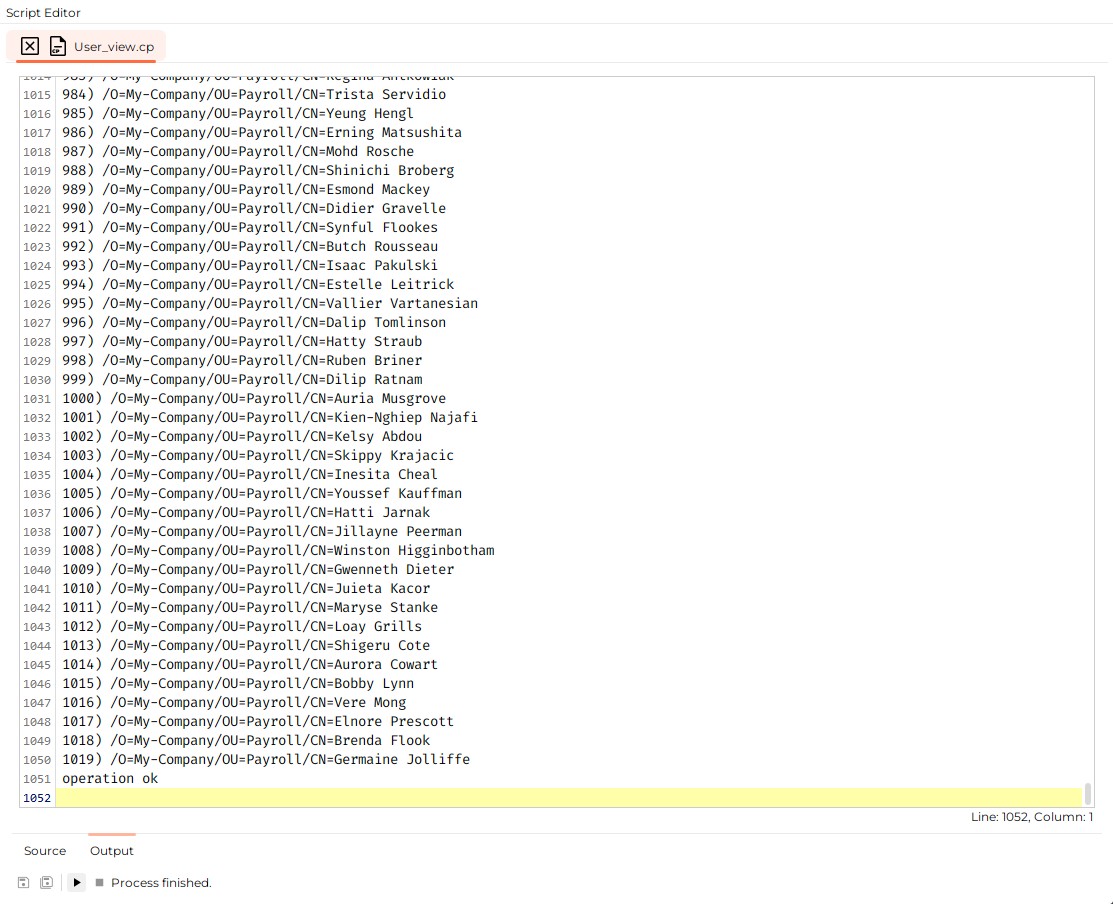
| Press F11 to quickly toggle between the Source and Output tabs. |
Managing Multiple Scripts
The script editor can manage more than one script at a time. Click the tabs at the top of the dialog to switch between scripts. Each tab displays the name of the script it contains. If a script contains unsaved changes, the icon contains an additional "asterisk" symbol to indicate this.
-
To close a script file currently opened in the script editor, click the close button in the respective tab or right-click the tab and click "Close".
-
To close all script files currently opened in the script editor at once, right-click any of the tabs and select "Close All".