Trace Window
The Trace Window allows you to enable, disable and configure trace information and display it in a window. It provides a convenient way to track down and solve problems between this application and the server, either with some assistance from your vendor’s support organization, or on your own.
The Trace Output window can be opened from the Application menu. It will open as a separate window, which can be used simultaneously with the main window.
Here is an example of a Trace Output window:
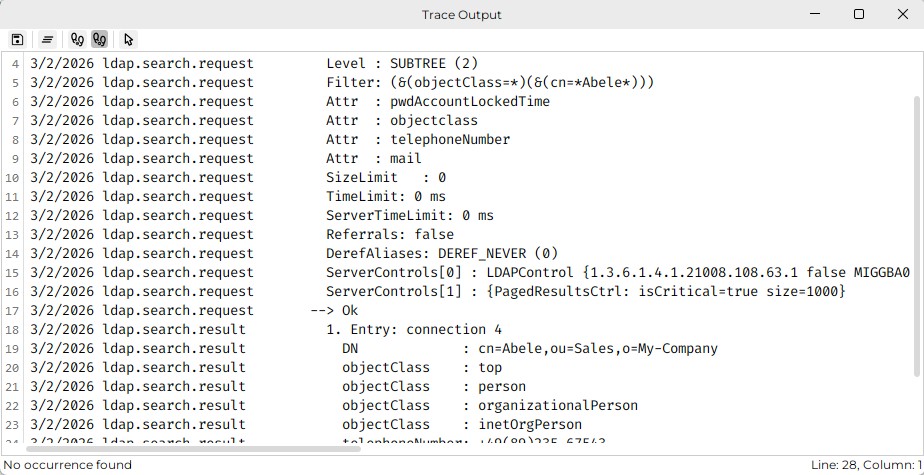
The window uses the standard editor. Its functionality is described in the Code Editor section.
Additionally, the Trace Output window provides the following buttons in its toolbar:
-
Save as - Save the trace output in a file.
-
Clear all - Clear the trace information currently displayed in the trace window.
-
Trace options - Opens the Trace Options Dialog
-
Trace enabled - Enable or disable tracing. When disabled, no trace information is collected and displayed in the trace window.
-
Contextual Help - Opens the contextual help for the Trace Output window.
Trace Options Dialog
The Trace Options dialog allows you to specify which trace information is displayed in the trace window. It can be opened by clicking the Trace Options button in the toolbar of the Trace Output window.
Here is an example of the Trace Options dialog:
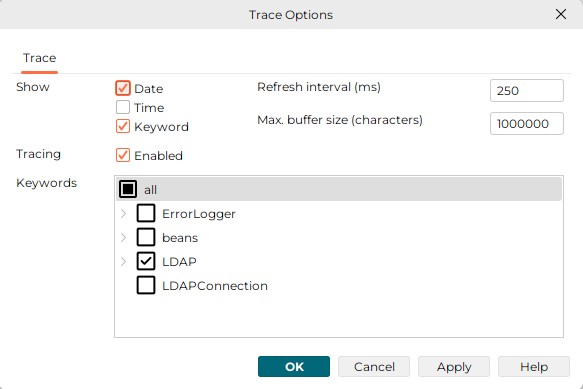
The Trace Options dialog contains the following fields and options:
-
Show
-
Date - Show the date of the trace event.
-
Time - Show the time of the trace event.
-
Keyword - Show the keyword of the trace event.
-
-
Refresh interval (ms) - Specify the refresh interval for the trace output in milliseconds. The trace output is updated with new trace information at this interval.
-
Max. buffer size (characters) - Specify the maximum buffer size for the trace output in characters. When the buffer size is exceeded, the oldest trace information is removed from the trace output t
-
Tracing
-
Enabled - Enable or disable tracing. When disabled, no trace information is collected and displayed in the trace window.
-
-
Keywords - Specify the keywords for which trace information should be collected and displayed in the trace window. Only trace information with these keywords will be displayed in the trace output.