Relations View
The Relations view is a visualization tool that shows the relationships between configuration objects in the application repository at a specific point in time. Administrators can navigate these relationships through an interactive diagram and create their own diagrams that provide:
-
A visual representation of the configuration state.
-
Detection and visual highlighting of changes made to the configuration over time.
Administrators can manage these diagrams, known as Relations Views, from two locations within DirX Access Manager.
Dependencies tab
The Dependencies tab is located on the configuration object details page. It contains an interactive diagram that depicts configuration objects, their properties, references between them and other additional cells.
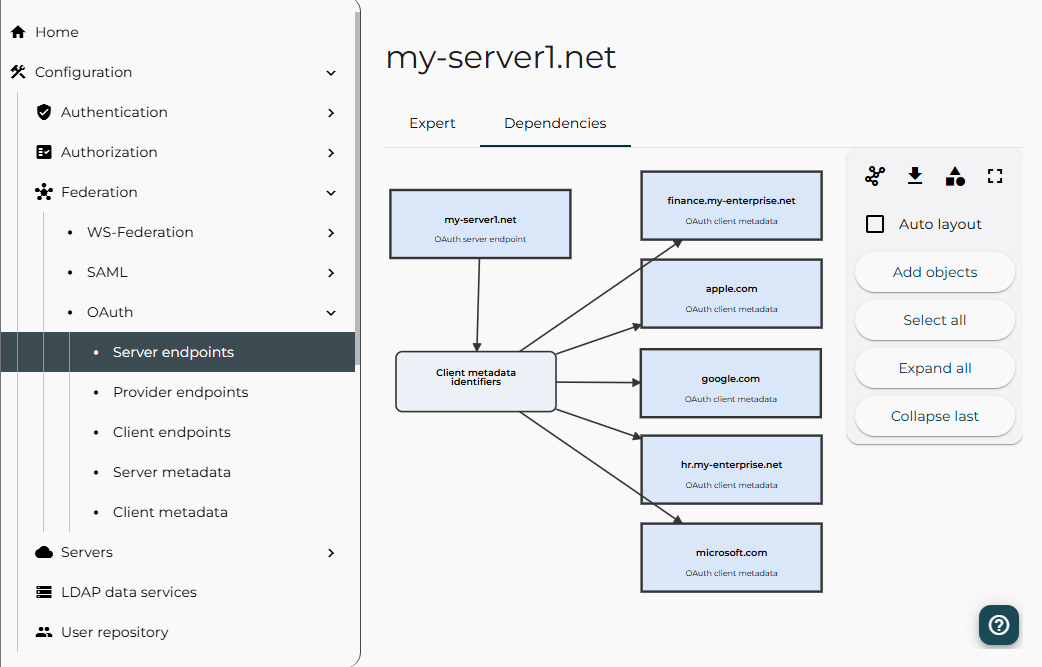
The most common cells in the relations view diagram are:
-
Object cell – a larger rectangular shape representing a configuration object, displaying its name and type.
-
Property cell – a smaller rectangular shape representing a property of a configuration object, displaying its type.
-
Outbound link – a line between a property cell and its source object cell, indicating that the source object owns the property.
-
Inbound link – a line between a property cell and a target object cell, indicating that a reference exists. May include ordering information for multi-value references.

Most diagram cells reveal hidden actions upon activation (user click). These actions allow for further interaction with the activated cell.
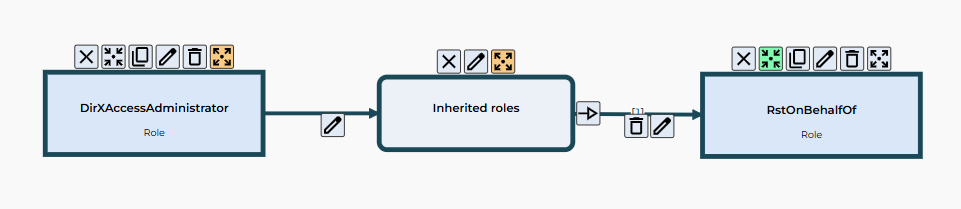
|
Hide |
Hides the activated cell. Since some cells are dependent on others, hiding one may cause associated cells to hide as well (e.g., hiding an object also hides its properties). This action affects the view only and does not change any data in the application repository. |
|
Show inbound references |
Shows all inbound references from other objects in the diagram that point to the activated object cell. |
|
Clone |
Opens a creation form dialog pre-filled with the activated object’s data. Saving the form creates a new object in the application repository. |
|
Edit |
When the activated cell is an object or property, opens a modification form to edit the data in the application repository. When the activated cell is a link (inbound or outbound), opens a label editing dialog instead. Label changes do not affect the application repository data. |
|
Delete |
Deletes a configuration object or reference in the application repository. |
|
Show outbound references |
When an object cell is activated, reveals all of its properties that may contain references to other objects. When a property cell is activated, displays all outbound references from that property to other objects in the application repository. |
|
Create reference |
Creates a new reference between a property and an object in the application repository. To use this action, drag from a property cell and drop it onto the target object cell. |


The Show inbound references and Show outbound references actions appear in the following states:
-
Default icon – references exist but are not currently visible in the diagram.
-
Disabled icon – no references are available to show.
-
Green background – all existing references are visible in the diagram.
-
Orange background – only some of the existing references are visible in the diagram.
The diagram also includes an expandable legend (bottom-right corner) and a toolbox (upper-right corner) that provides the following actions:
-
View actions
-
Export view - exports the current view as a JSON file.
-
Import view - imports a view from a JSON file.
-
Save - quickly saves changes made to the selected view.
-
Save as (allows metadata modification):
-
New - saves the current view as a new one.
-
Existing - saves changes to the selected view.
-
-
Open - loads a view from the list of assigned relations views.
-
-
Export configuration - exports part of the configuration depicted in the diagram in the DXA Config REST API format.
-
Add shape (Group, Note, Text, Line).
-
Enter / Exit full-screen.
-
Auto layout - enables / disables automatic layout of the diagram.
-
Add objects - adds configuration object of any type into the diagram.
-
Expand all – shows all direct outbound references for the currently displayed configuration objects.
-
Collapse last – hides the outermost level of references in the diagram. This is not the direct inverse of Expand all.
|
All Relations Views assigned to the configuration object are listed in the selection box (shown within Open action) and sorted by priority. The system automatically loads the highest-priority view each time the Dependency tab is accessed. |
Visualization item
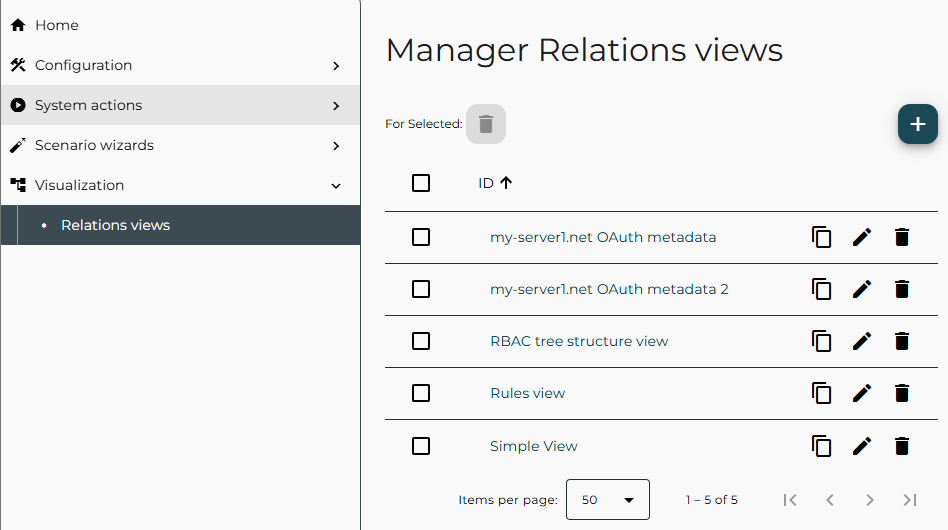
The Visualization item is located in the top-level navigation menu on the left side. It contains a table listing all saved relations views, which administrators can review and manage. It is also the only location where relations views can be deleted. When a relations view is selected, the diagram loads and is displayed in the same way as described in Dependencies tab.
Comparison
A relations view captures the configuration state at a specific point in time. Over time, this can lead to inconsistencies if the underlying configuration changes. To address this, every loaded relations view is automatically compared with the current configuration, and any conflicts are highlighted directly in the diagram. The administrator must review and resolve these conflicts manually. During the resolution process, the administrator can accept the current configuration by updating the loaded view to match it, modify the configuration to align with the loaded view, or combine both approaches to reach the desired configuration state.
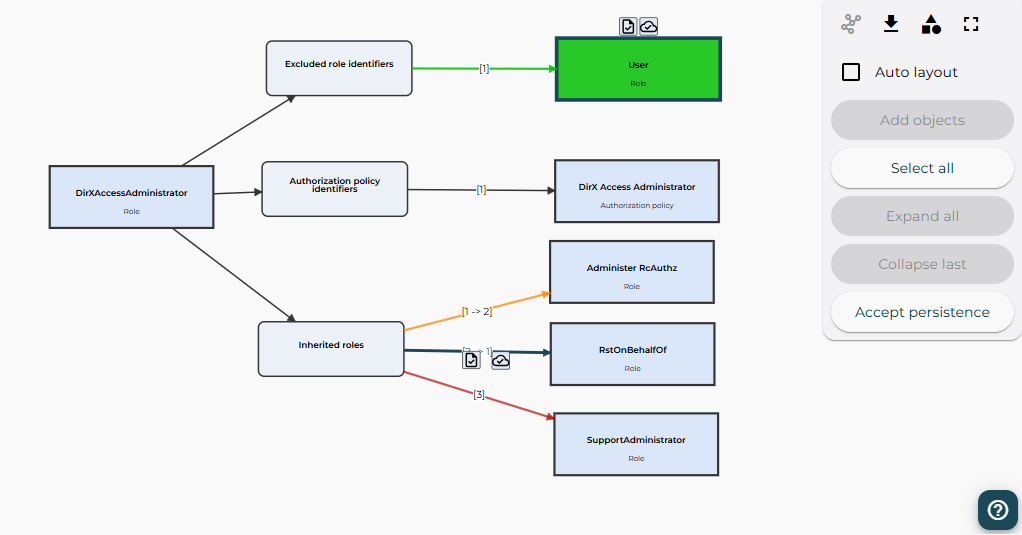
To resolve the conflict, the administrator can use the following actions:
|
Keep import |
Marks the conflicting cell as resolved by accepting the view state. Once all conflicts are resolved, the configuration is updated to match the state shown in the view. |
|
Keep persistence |
Marks the conflicting cell as resolved by accepting the current configuration state. This updates the view to reflect the current configuration without modifying the configuration itself. |


Manager plugin application identifier
An identifier of a DXA Manager instance to use this view at. If left empty, the view is used by all DXA Manager instances.
Assignment class
Type at which to use this view. If left empty, the view is not assigned to any specific type.